
























Desktop Laser Engraver: Buyer’s Guide

When I first considered diving into the world of laser engraving, the sheer number of options felt overwhelming.
From industrial giants to compact hobby machines, finding the right fit for my creative space — a small workshop at home — was a real challenge.
That’s why I put together this guide.
The goal is simple: cut through the noise and help you confidently choose the best desktop laser engraver or laser cutter based on how people actually use these machines in real life.
What Exactly Is a Desktop Laser Engraver
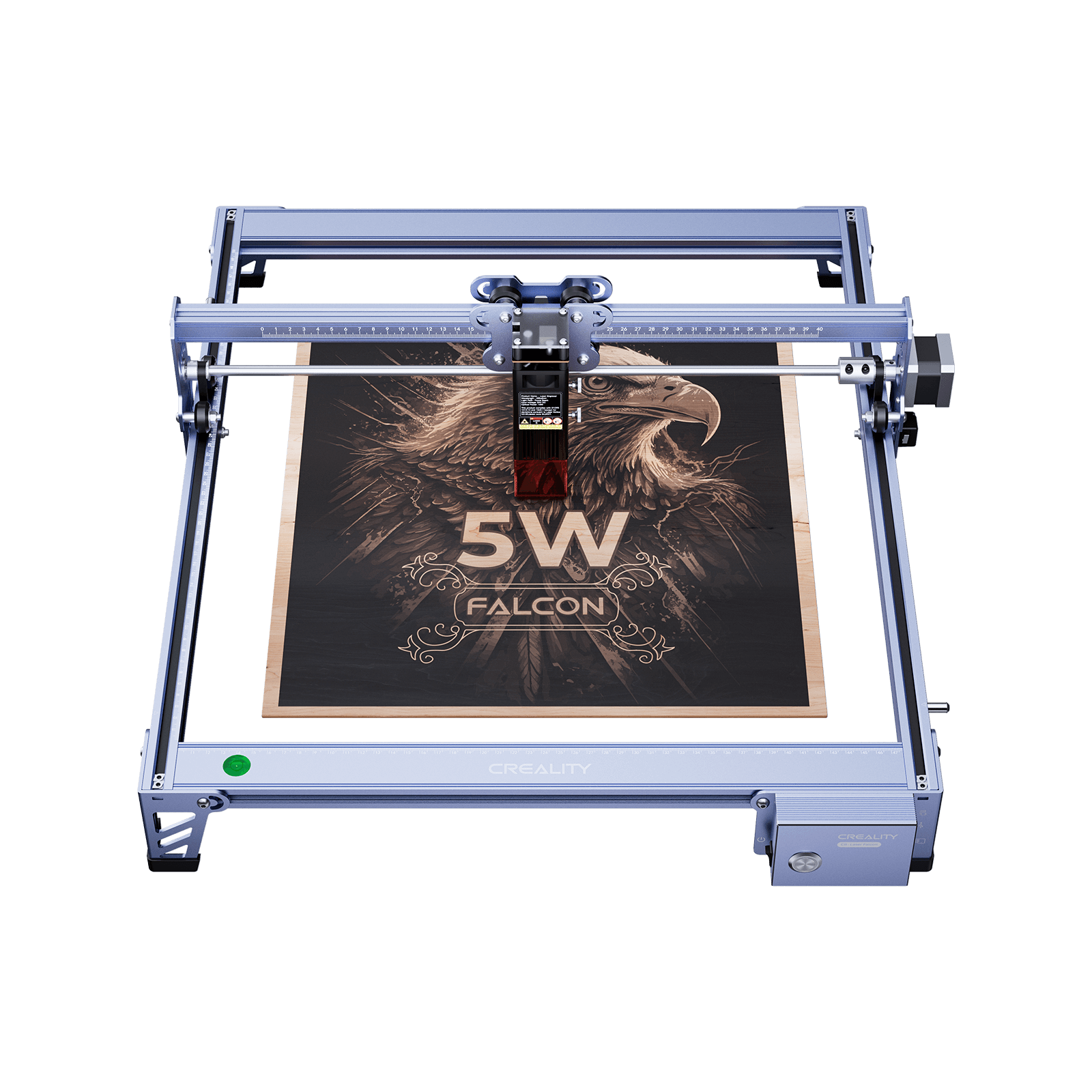
A desktop laser engraver is a compact machine that uses a focused laser beam to engrave designs or cut materials with high precision.
Unlike industrial laser systems that require dedicated rooms, desktop engravers are designed to fit on a workbench or desk, making them accessible for:
- Home users
- Small businesses
- Schools and makerspaces

The laser functions like a digital chisel, allowing you to engrave text, images, and patterns or cut thin materials cleanly and accurately.
In practice, desktop laser engravers are commonly used to turn:
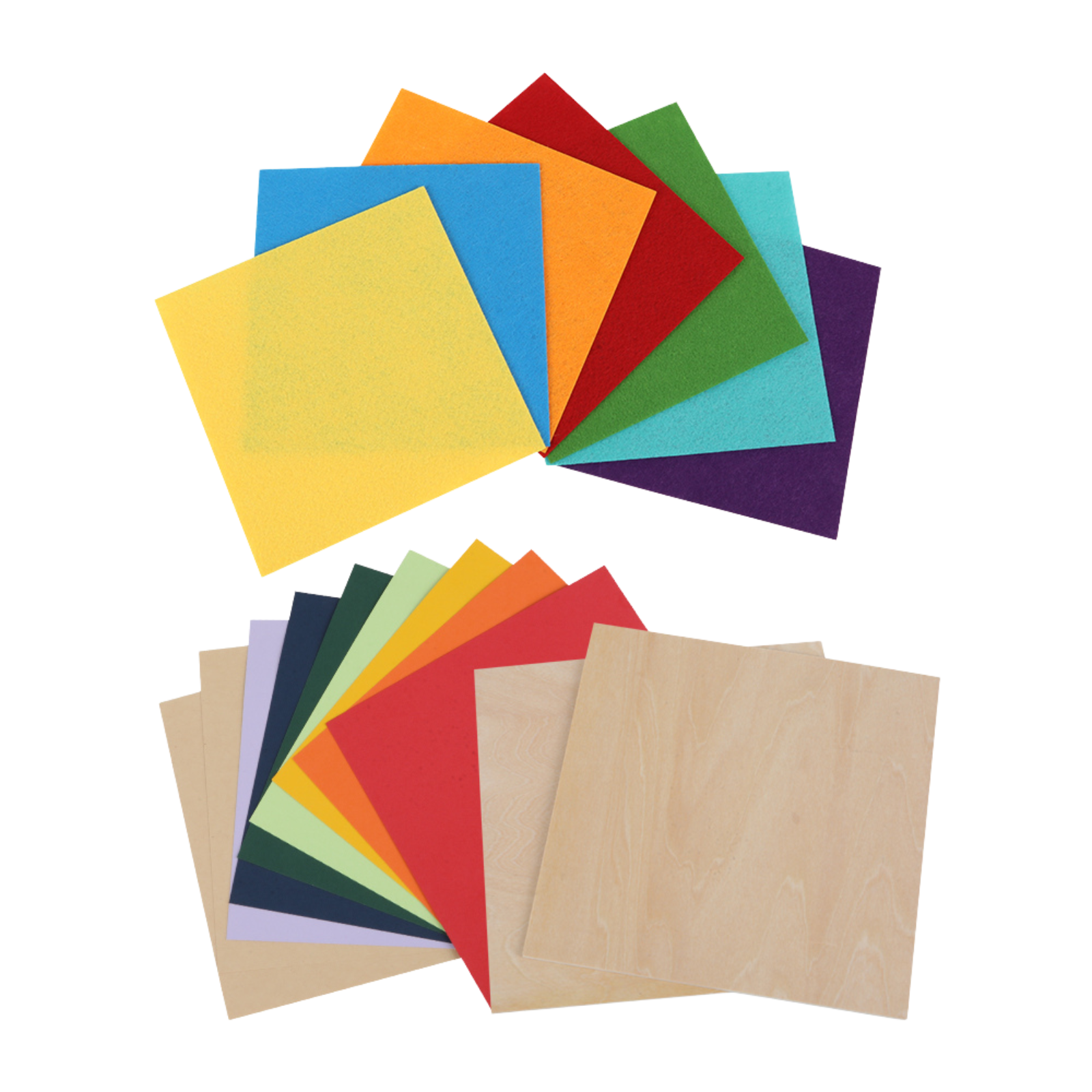
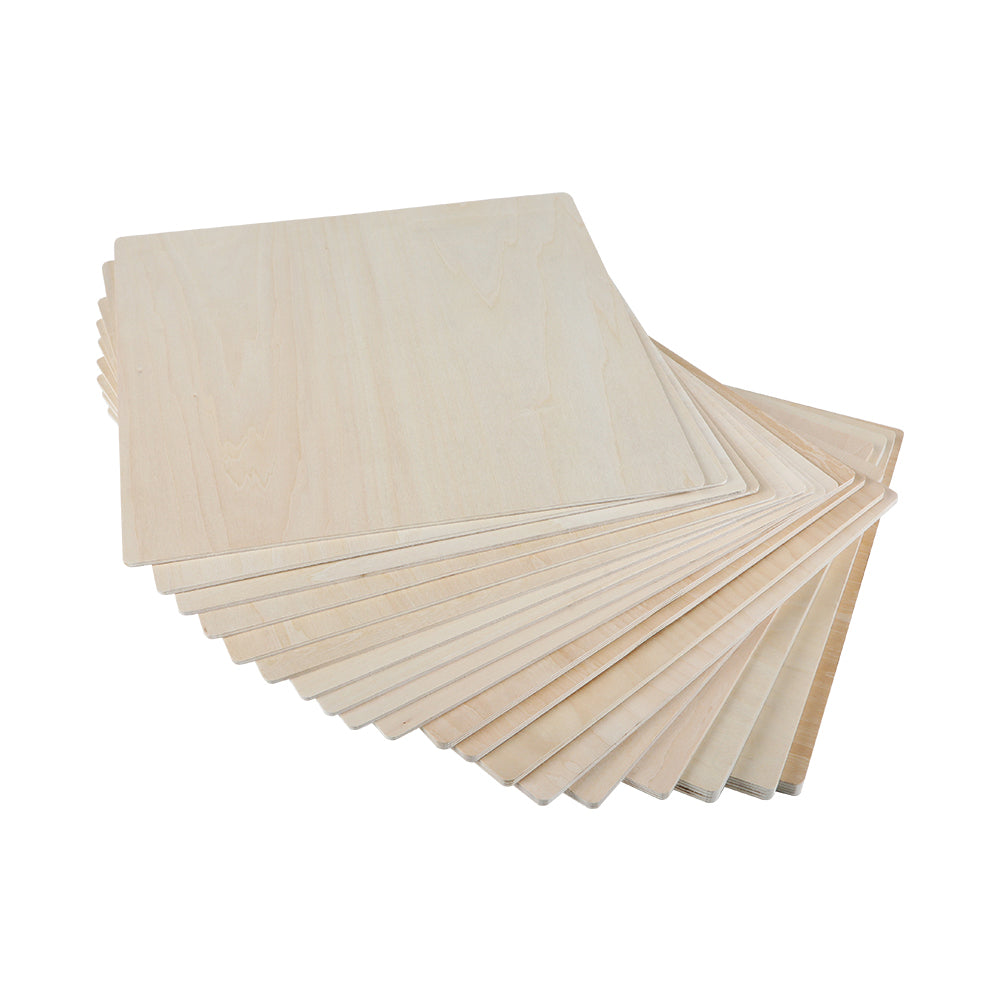
- Wood into personalized gifts
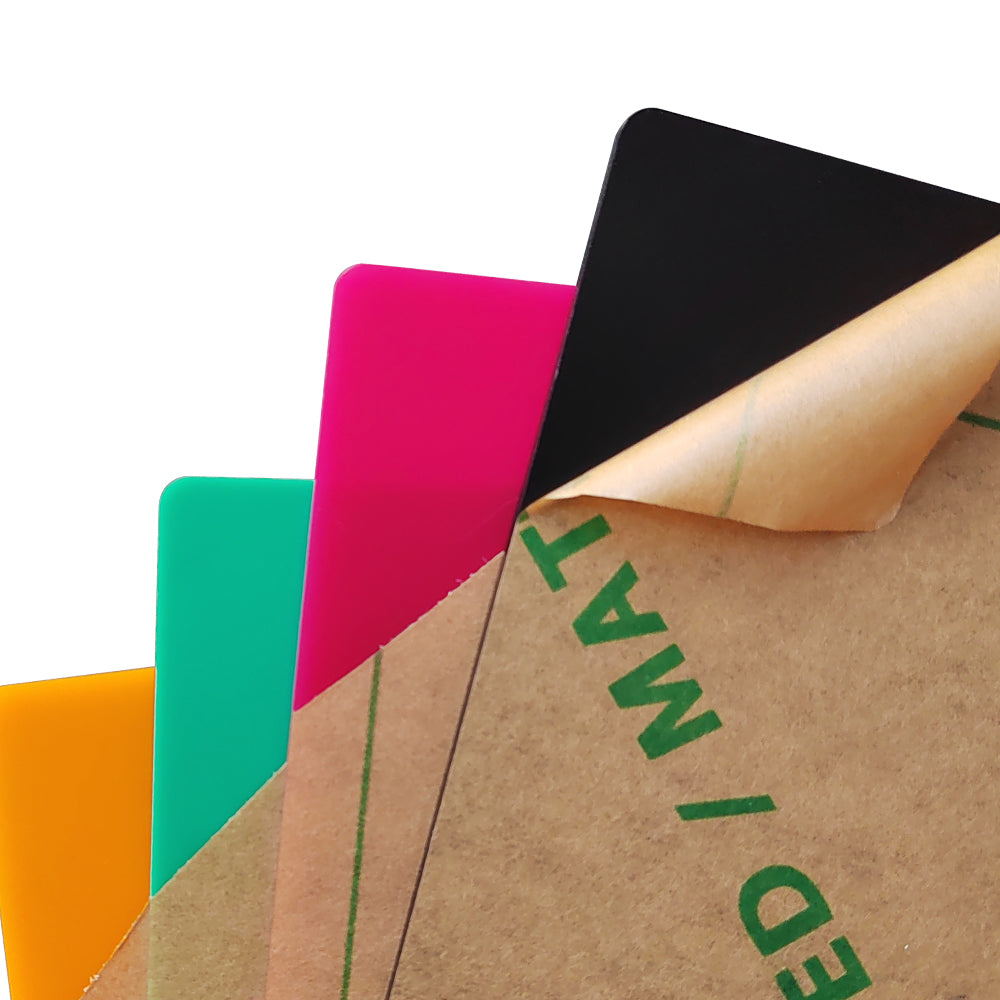
- Acrylic into signage and displays
- Leather into custom accessories
Their versatility across materials such as wood, paper, cardboard, leather, rubber, and some plastics makes them one of the most flexible creative tools available today.
Who Should Buy a Desktop Laser Engraver
One reason desktop laser engravers are so popular is how many different users they serve.
1. Hobbyists & DIY Makers
If you enjoy crafting, model making, or personalizing gifts, a desktop laser engraver unlocks a new level of precision and repeatability.
It allows you to create professional-looking results at home without needing industrial equipment.
2. Small Businesses & Entrepreneurs
For Etsy sellers, workshops, or local brands, desktop engravers enable:
- On-demand customization
- Fast prototyping
- Low-cost small-batch production
This flexibility often translates directly into higher margins and faster product iteration.
3. Educators & Students
In classrooms and labs, desktop laser engravers support STEM education, design thinking, and rapid prototyping.
Students can quickly turn digital concepts into physical objects, reinforcing hands-on learning.
What Can a Desktop Laser Engraver Do
A common question is whether desktop machines are limited to engraving only.
In reality, many desktop laser engravers can both engrave and cut, depending on laser power and material type.
Typical applications include:
- Engraving logos, photos, and text
- Cutting thin wood, leather, and acrylic
- Creating signs, tags, packaging, and prototypes
Cutting thickness varies, but even compact machines are capable of far more than most beginners expect.

6 Key Factors to Consider Before Buying
Choosing the right desktop laser engraver comes down to a few critical factors.
1. Laser Type: Diode vs CO₂
- Affordable and compact
- Excellent for engraving wood, leather, paper, and dark acrylic
- Limited performance on clear acrylic and glass
- More powerful and faster
- Can cut clear acrylic and engrave glass
- Larger footprint and higher cost
If your focus is engraving and light cutting, diode lasers are often sufficient.
If you need speed, thicker cuts, or wider material compatibility, CO₂ lasers are worth the investment.
2. Laser Power (Watts)
Laser power directly affects speed and cutting ability.
- 5–10W: detailed engraving, light cutting
- 20W+: thicker materials, faster production
- 40–60W+: serious cutting and small-batch work
My advice is to match power to your actual projects, not just specifications on paper.
3. Work Area Size
Work area defines how large your projects can be.
- Small beds suit tags, jewelry, and coasters
- Larger beds support signs, cutting boards, and batch jobs
Keep in mind that larger work areas usually mean a larger overall machine footprint.
4. Material Compatibility
Not all materials are safe or compatible with every laser.
Common compatible materials include:
- Wood and plywood
- Leather
- Cardboard and paper
- Rubber
- Dark or coated acrylic
Materials like PVC and vinyl should never be engraved due to toxic fumes. Always check manufacturer guidelines.

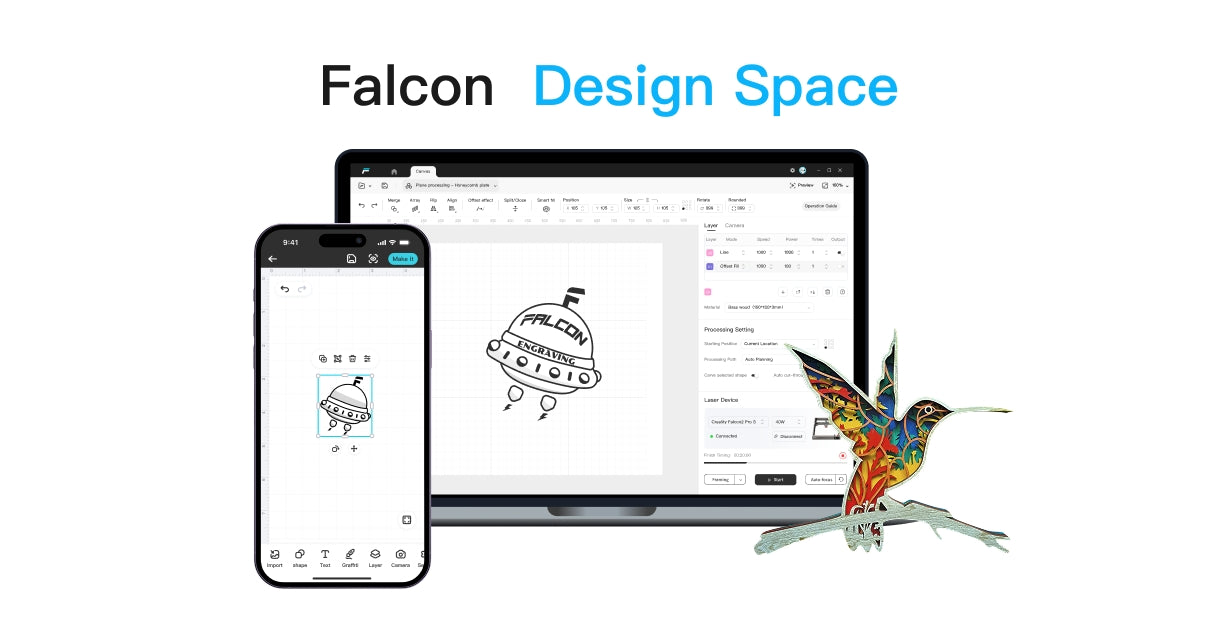
5. Software & Ease of Use
Software plays a huge role in day-to-day usability.
Most desktop laser engravers support:
- LightBurn (highly recommended)
- LaserGRBL
- Manufacturer-provided software
A good software experience shortens the learning curve dramatically and reduces setup frustration.
6. Safety Features
Because desktop engravers are often used at home, safety is non-negotiable.
Important features include:
- Enclosed designs
- Emergency stop buttons
- Flame detection
- Lid interlocks
Eye protection and ventilation are required regardless of built-in safety features.
How Much Does a Desktop Laser Engraver Cost
Desktop laser engravers typically fall into three price ranges:
- $300–$700: entry-level diode engravers for beginners
- $800–$1,500: higher-power or semi-enclosed machines
- $1,500–$3,000+: enclosed, high-performance desktop systems
If you plan frequent use or small-scale production, spending more upfront usually saves money long term.
Our Top Pick: The Best Desktop Laser Engraver for Beginners
When evaluating desktop laser engravers for beginners, I focus less on raw power and more on ease of use, safety, and reliability.
A machine that works smoothly out of the box is far more valuable than one with extreme specs but a steep learning curve.
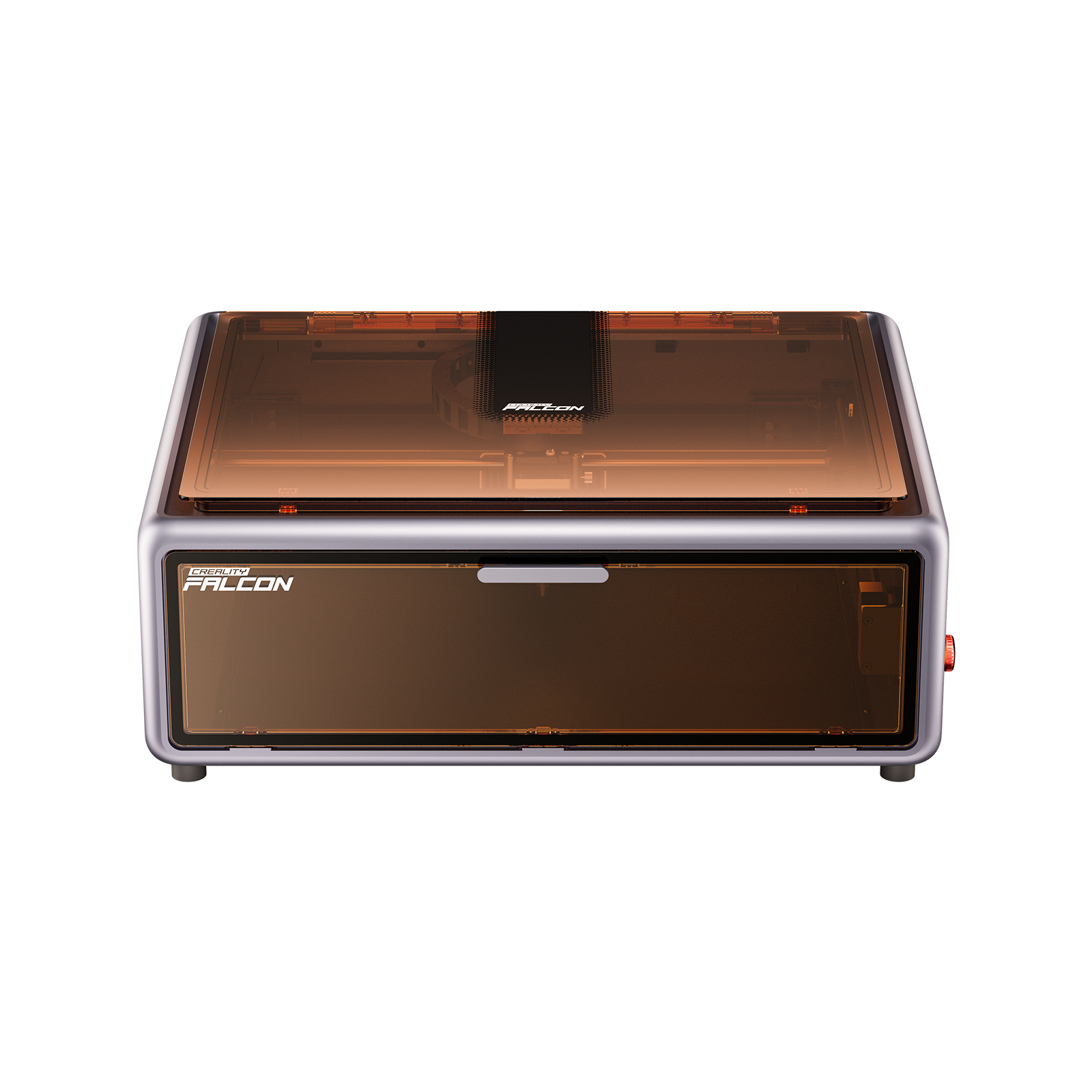
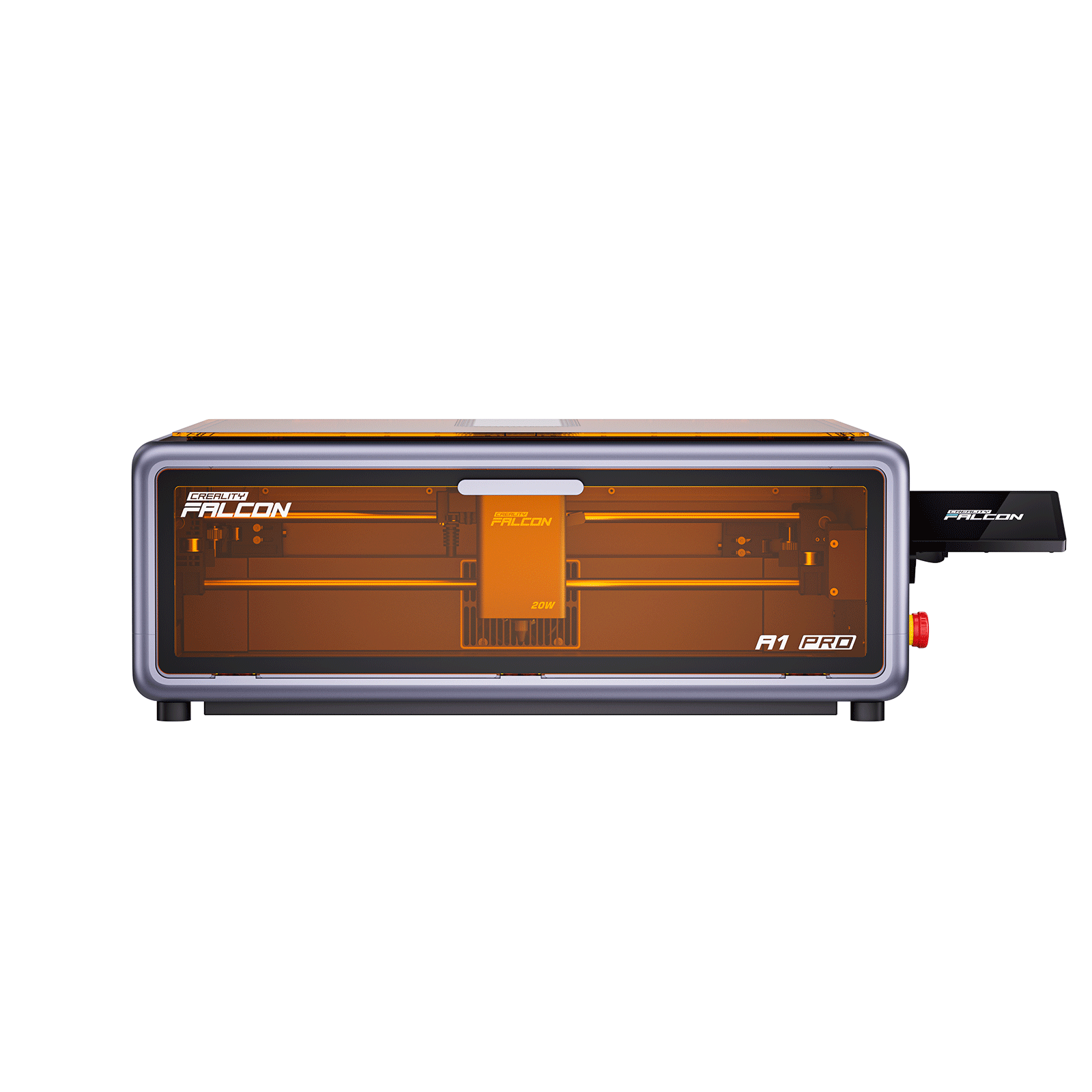
For first-time users, hobbyists, and home workshops, the Creality Falcon A1 Pro is a more practical and beginner-friendly choice.
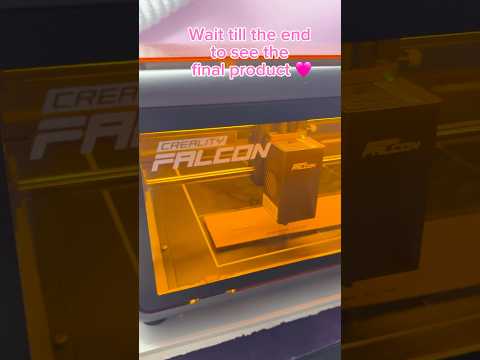
Here is the product introduction of Falcon A1 Pro:
Why the A1 Pro Is Ideal for New Users
- Fully Enclosed, All-in-One Design:
- The A1 Pro is built as a true desktop machine. The enclosed design improves safety, keeps noise down, and makes it much easier to manage smoke and fumes. That makes it a good fit for apartments, home offices, or small studios where space and ventilation are limited.
- Beginner-Friendly Power Level
- Instead of overwhelming new users with excessive wattage, the A1 Pro focuses on balanced power that’s easier to control. It handles engraving and light cutting reliably, without the constant tuning and adjustments that higher-power machines often require.
- Minimal Setup, Low Learning Curve
- One of the best things about the A1 Pro is how easy it is to get started. The machine is designed to work smoothly right out of the box, so beginners can spend more time learning materials and designs instead of troubleshooting hardware.
- Stable Performance for Everyday Projects
- For common beginner projects—wood, leather, acrylic, tags, signs, and small crafts—the A1 Pro delivers consistent results without unnecessary complexity. It’s powerful enough for most creative projects while still being easy to manage.
In short, while higher-power machines are great for production-heavy workflows, the A1 Pro is a better match for users who want a safe, simple, and stress-free introduction to desktop laser engraving.

Setup and Getting Started
Assembly and Installation
Prepare a well-ventilated space and follow manufacturer's instructions carefully. Inspect components before use and take your time during setup.
Software Setup
Install the recommended software, configure your machine profile, and create a basic material library early on.
First Projects
Start with simple engraving tests on scrap material to dial in focus, speed, and power settings.
Safety Essentials You Should Never Skip
Laser engraving always requires active supervision.
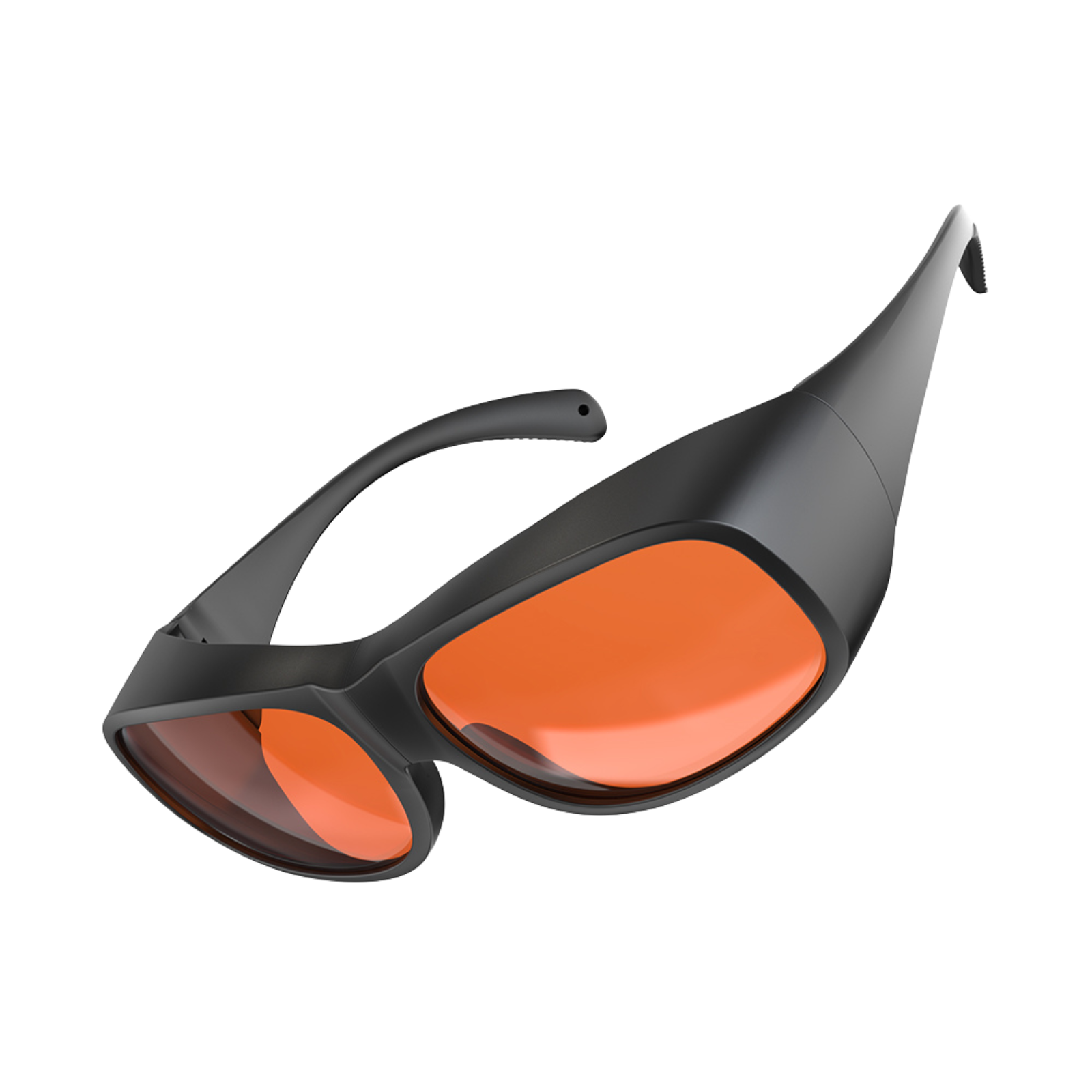
- Wear laser-rated safety glasses
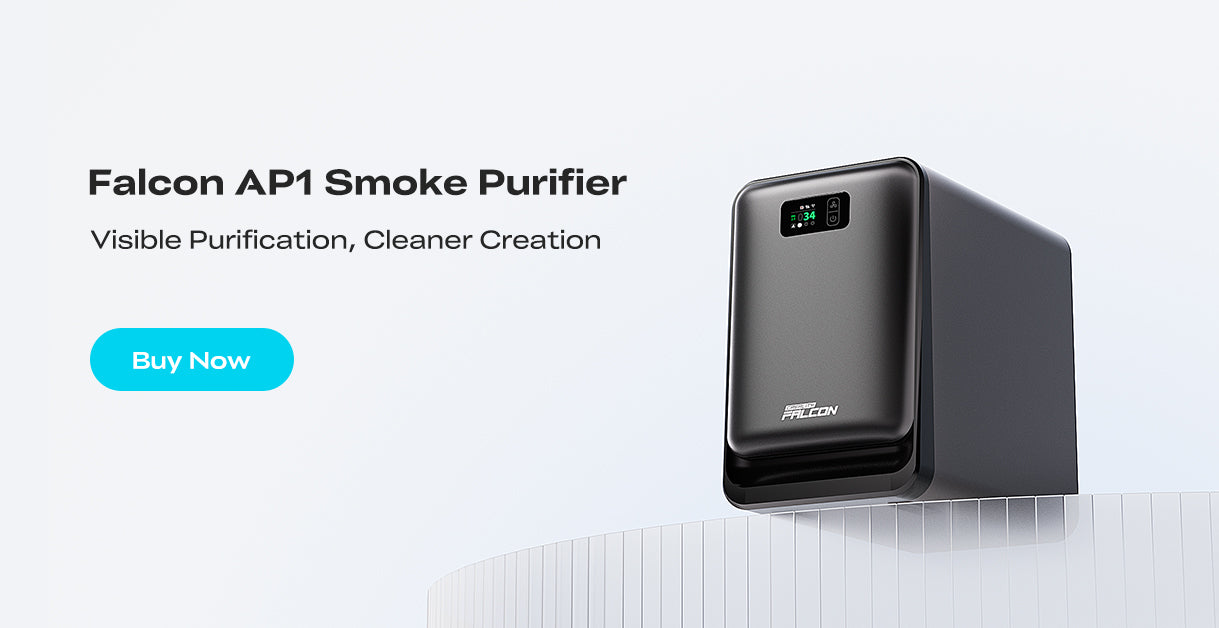
- Ensure proper ventilation or filtration
- Keep a fire extinguisher nearby
- Never leave the machine unattended
An enclosed machine significantly reduces risk but does not eliminate the need for caution.
Frequently Asked Questions About Desktop Laser Engravers
Can a desktop laser engraver cut materials?
- Yes. Many models can cut thin wood, leather, and acrylic, depending on power.
Is it safe to use at home?
- Yes, with proper ventilation, eye protection, and supervision.
What materials should never be engraved?
- PVC, vinyl, and certain plastics that release toxic fumes.
Which software is best?
- LightBurn is the most popular choice for flexibility and control.
Who is a desktop laser engraver best for?
- Hobbyists, small business owners, educators, and anyone looking to create custom products or prototypes at home.
Recent News

12 World Cup Laser Engraving Ideas for Fans
Explore world cup laser engraving ideas for fan gifts, tumblers, coasters, signs, and safe soccer-inspired designs makers can...

What Materials Does a Laser Cutter Cut Safely
Find out what materials does a laser cutter cut, which plastics to avoid, and how CO2, diode, and...

7 Best Laser Engravers Under $1000
Quick Answer:The best laser engraver under $1000 should be chosen by total setup cost, not machine price alone.For most...