

























4 Laser Cutter Test File Download Sources [Free]
![4 Laser Cutter Test File Download Sources [Free]](http://www.crealityfalcon.com/cdn/shop/articles/laser-cutter-test-file_bbaceeac-407f-478e-b287-afa0f1bc27bf.webp?v=1779776385&width=1600)
Quick Answer:
A laser cutter test file helps you find the right speed, power, passes, and focus settings before starting a real project.
It is especially useful for wood, acrylic, leather, cardboard, and coated materials because results vary by color, thickness, coating, and surface finish.
Beginners can use free test files from Thingiverse, LaserGRBL, Falcon Design Space, or LightBurn.
What Is a Laser Cutter Test File
A laser cutter test file is a ready-made calibration template that helps you compare different speed and power settings on the same material. Instead of guessing, you run a grid or sample pattern and choose the setting that gives the cleanest engraving or best cut.
A material test card is the go-to tool for calibrating a laser cutter. It helps you avoid wasted material, weak engraving, excessive charring, incomplete cuts, and inconsistent project results.

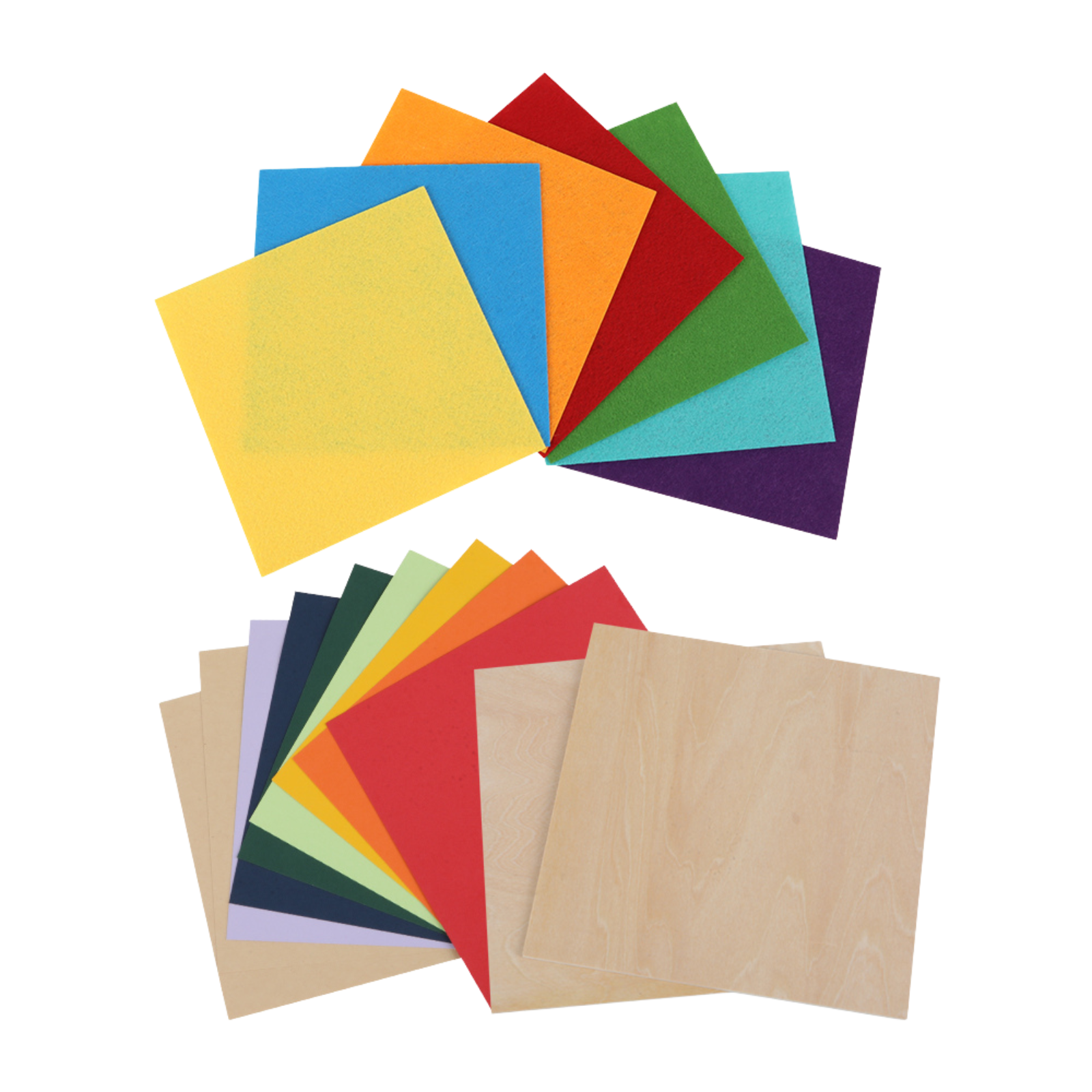
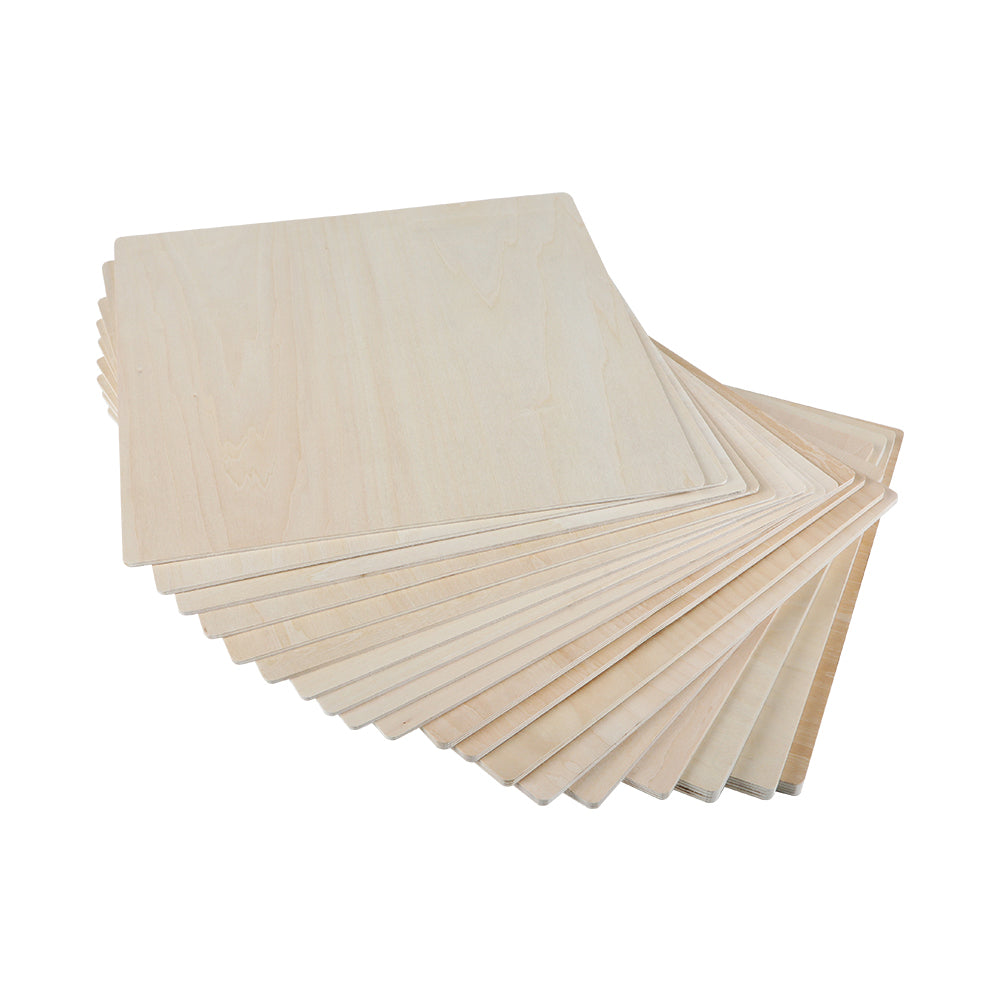
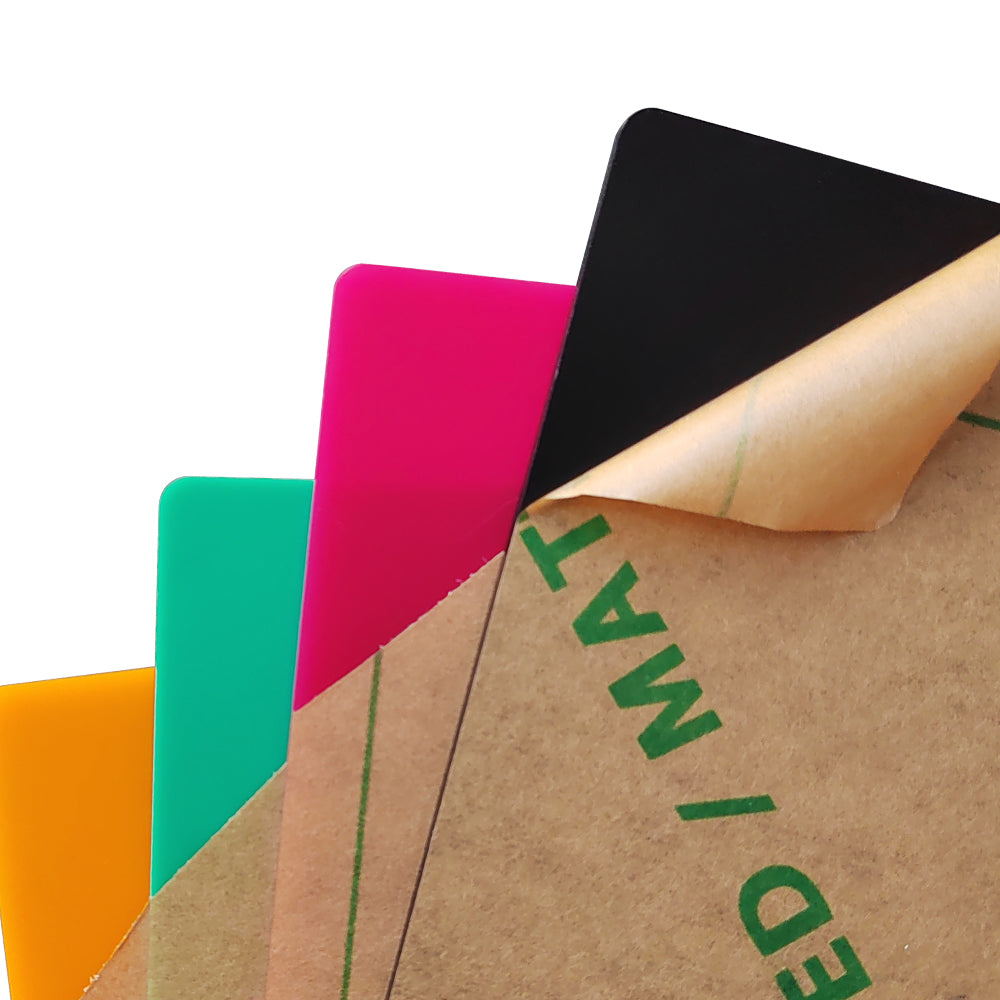
Always test on a scrap piece from the same material batch. Results vary by material type, color, coating, thickness, moisture, glue content, and surface finish, so users should always run a material test before production.
Best Places to Download Laser Cutter Test Files
There are several reliable places to find free or built-in laser cutter test files. Some are community-driven, while others are built directly into laser software.
| Source | Best For | Cost | Beginner Note |
|---|---|---|---|
| Thingiverse | Community-made test cards and templates | Free | Check comments and ratings before downloading |
| LaserGRBL | Simple diode laser test files | Free | Good for basic engraving and focus tests |
| Falcon Design Space | Creality Falcon users and built-in templates | Free | Best starting point for Falcon owners |
| LightBurn | Custom material test generator | Paid software with trial options | Best for advanced control and repeatable testing |
4 Methods to Download the Material Test Card
1. Thingiverse
Thingiverse is one of the largest online communities for makers and DIY users. It includes user-uploaded files for 3D printing, laser engraving, cutting, alignment, and material testing.
You can search for “laser cutter test file,” “laser test card,” or “material test grid” and sort by popularity. Since files are community-submitted, check comments, version history, and file format before using them.

- Large collection of free community files.
- Useful for test cards, alignment tools, and sample projects.
- Some files may need editing before use.
- Quality varies, so check user feedback before cutting.
2. LaserGRBL
LaserGRBL is free laser control software often used with diode laser machines. Its test files and sample files are practical for beginners who want quick calibration without designing a test grid from scratch.
LaserGRBL is useful for basic focus tests, engraving samples, and beginner diode laser workflows. It is especially helpful if your machine supports GRBL-based control and you want a simple path into speed and power testing.

- Free software with simple test file options.
- Good for diode laser beginners.
- Supports common laser file workflows.
- Less advanced than LightBurn for custom testing.
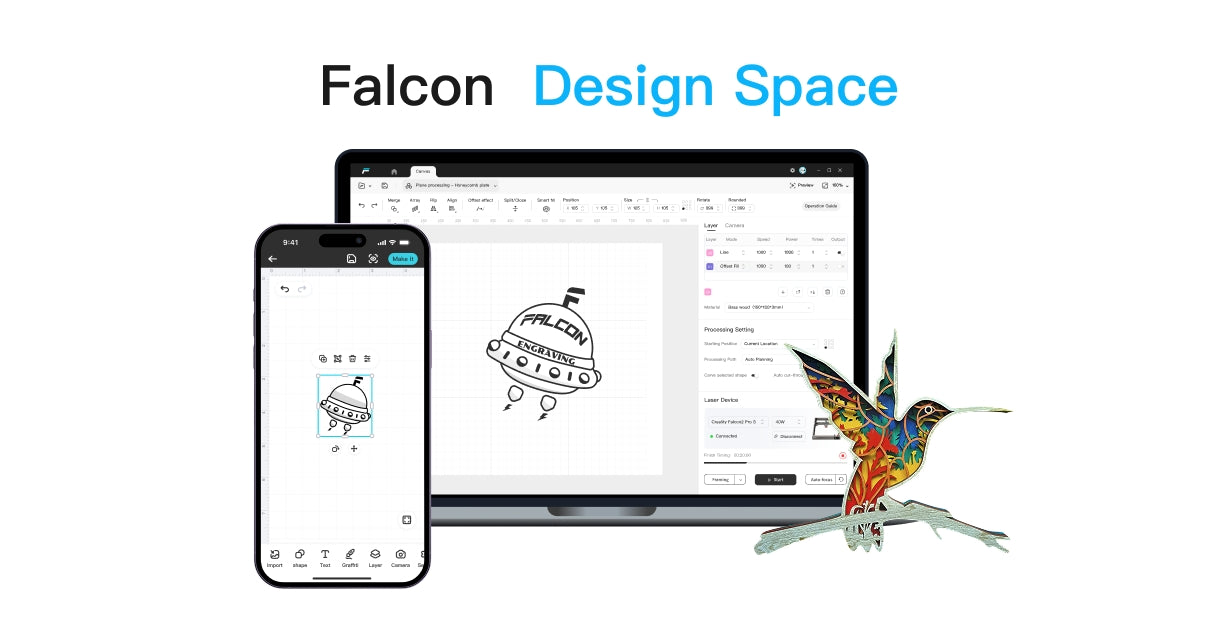
3. Falcon Design Space
Falcon Design Space is Creality Falcon’s beginner-friendly software for Falcon laser users. It is useful for starting quickly because users can create, import, place, and prepare simple designs without a steep learning curve.
For Falcon owners, Falcon Design Space is often the most convenient place to start because it keeps the workflow close to the machine ecosystem. Beginners can use it to test wood, leather, dark acrylic, paper, cardboard, and coated blanks before making the final project.

- Useful for Creality Falcon users.
- Beginner-friendly interface.
- Good for simple test cards and starter projects.
- Works well before moving into advanced software workflows.
4. LightBurn
LightBurn includes a Material Test tool that lets users generate custom speed and power grids. This is often better than downloading a fixed test file because you can adjust the range, step size, fill mode, line mode, and material goal.
LightBurn is especially useful for users who want repeatable testing across different woods, acrylics, leathers, and coated materials. It is a paid tool, but many laser users prefer it for long-term control and production work.

- Built-in material test generator.
- Works across Windows, macOS, and Linux.
- Useful for both engraving and cutting tests.
- Better customization than fixed downloadable files.
How to Use a Laser Cutter Test File
Using a test file is simple, but the value comes from testing one material at a time. Do not use settings from one material on another without checking first.
- Choose the exact material: Use a scrap piece from the same sheet, batch, coating, or color as your final project.
- Focus the laser: Incorrect focus can make a good setting look bad.
- Set a safe test range: Start with reasonable speed and power values for your material.
- Run the test: Stay near the machine and watch for smoke, flame, or unexpected behavior.
- Compare the results: Choose the cleanest engraving or the fastest setting that cuts through reliably.
- Save the setting: Record material type, thickness, speed, power, passes, focus, and air assist status.
Recommended Laser Engraver for Beginners
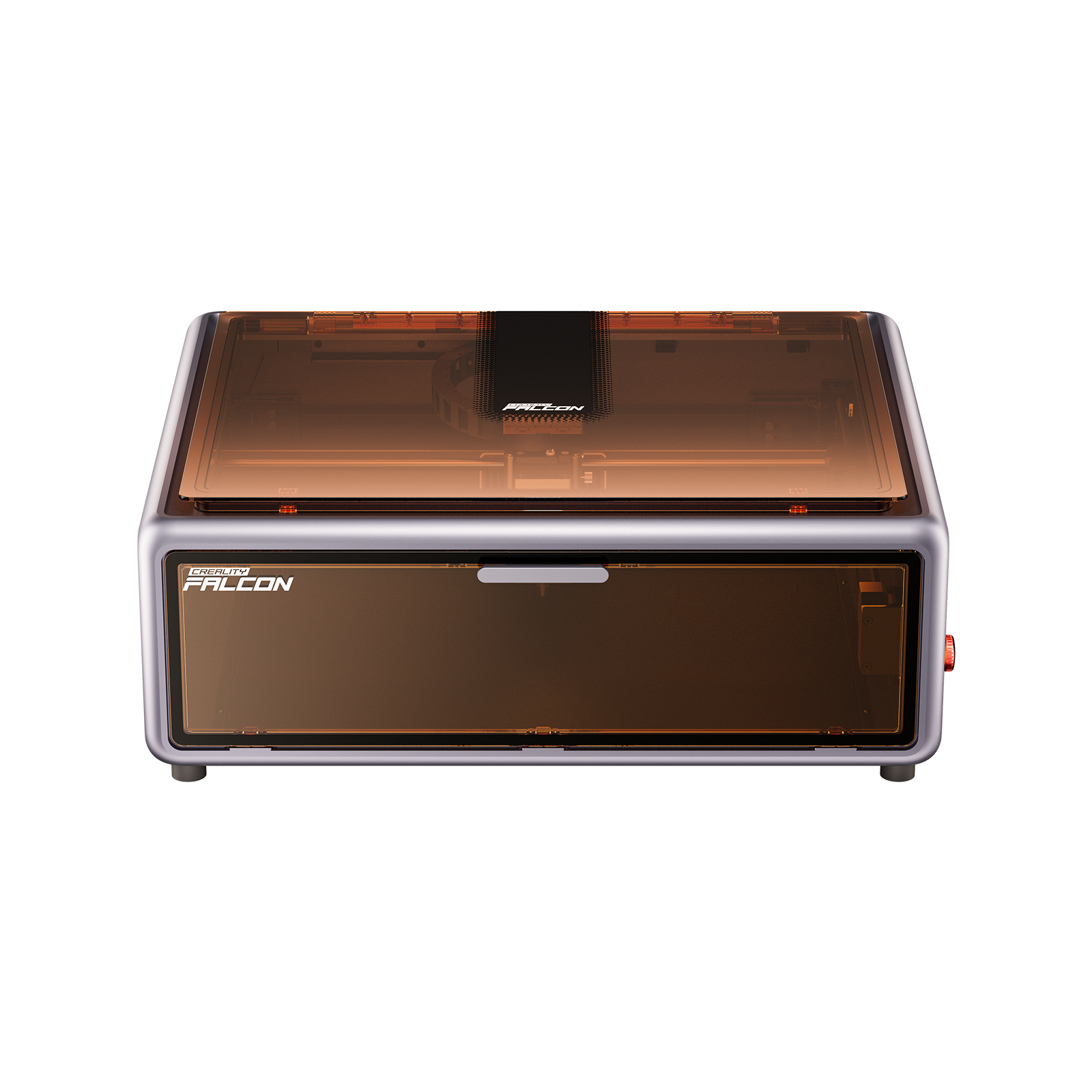
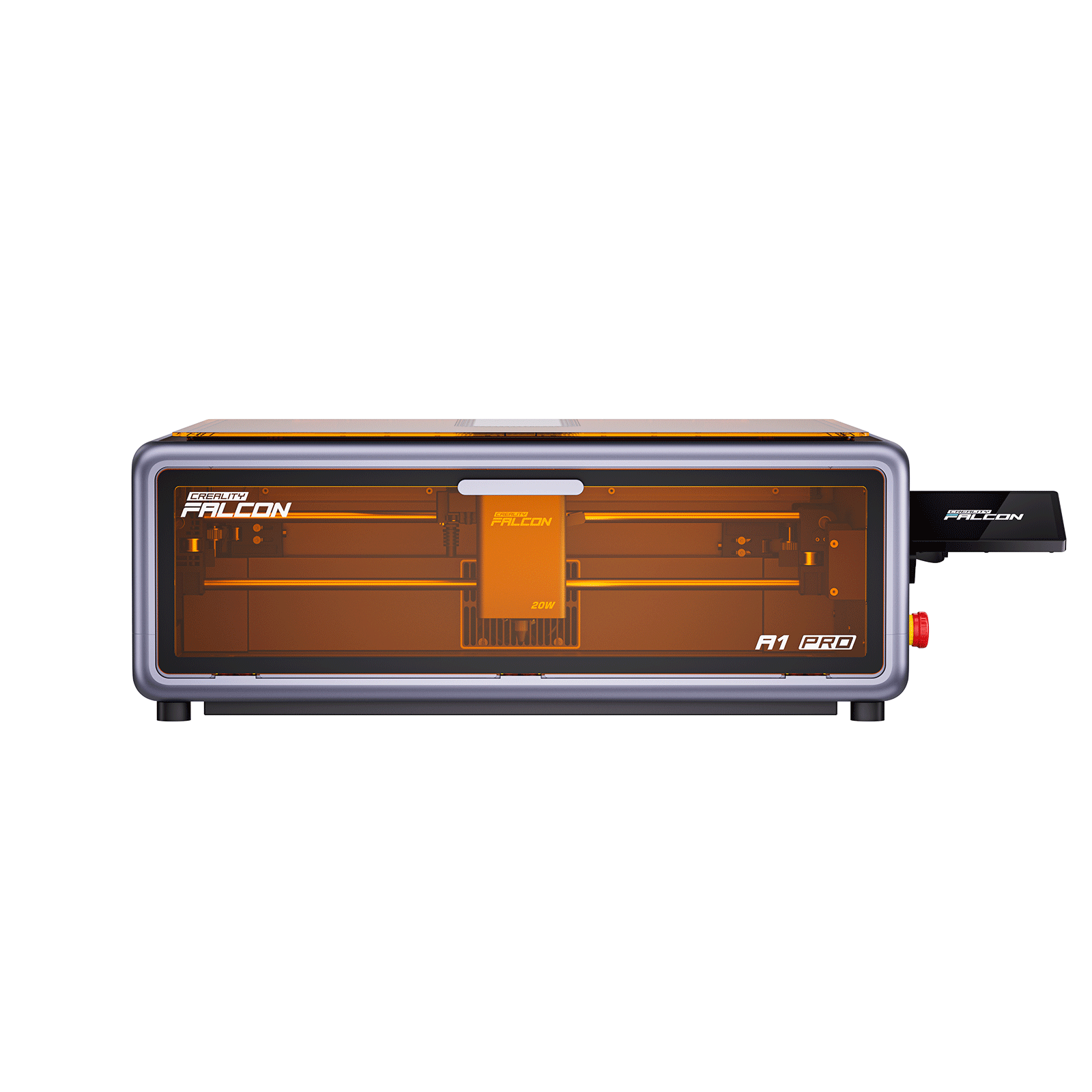
1. Creality Falcon A1 Pro
Why Choose This Product: The Creality Falcon A1 Pro is a strong beginner-friendly choice for users who want an enclosed laser engraver with smart workflow features, 20W diode power, and room to grow beyond basic test files.
The A1 Pro fits this topic well because test files are most useful when the machine can repeat settings reliably. Its enclosed design, AI visual autofocus, touchscreen control, app workflow, and software support help beginners reduce setup friction while learning speed, power, passes, and material behavior.
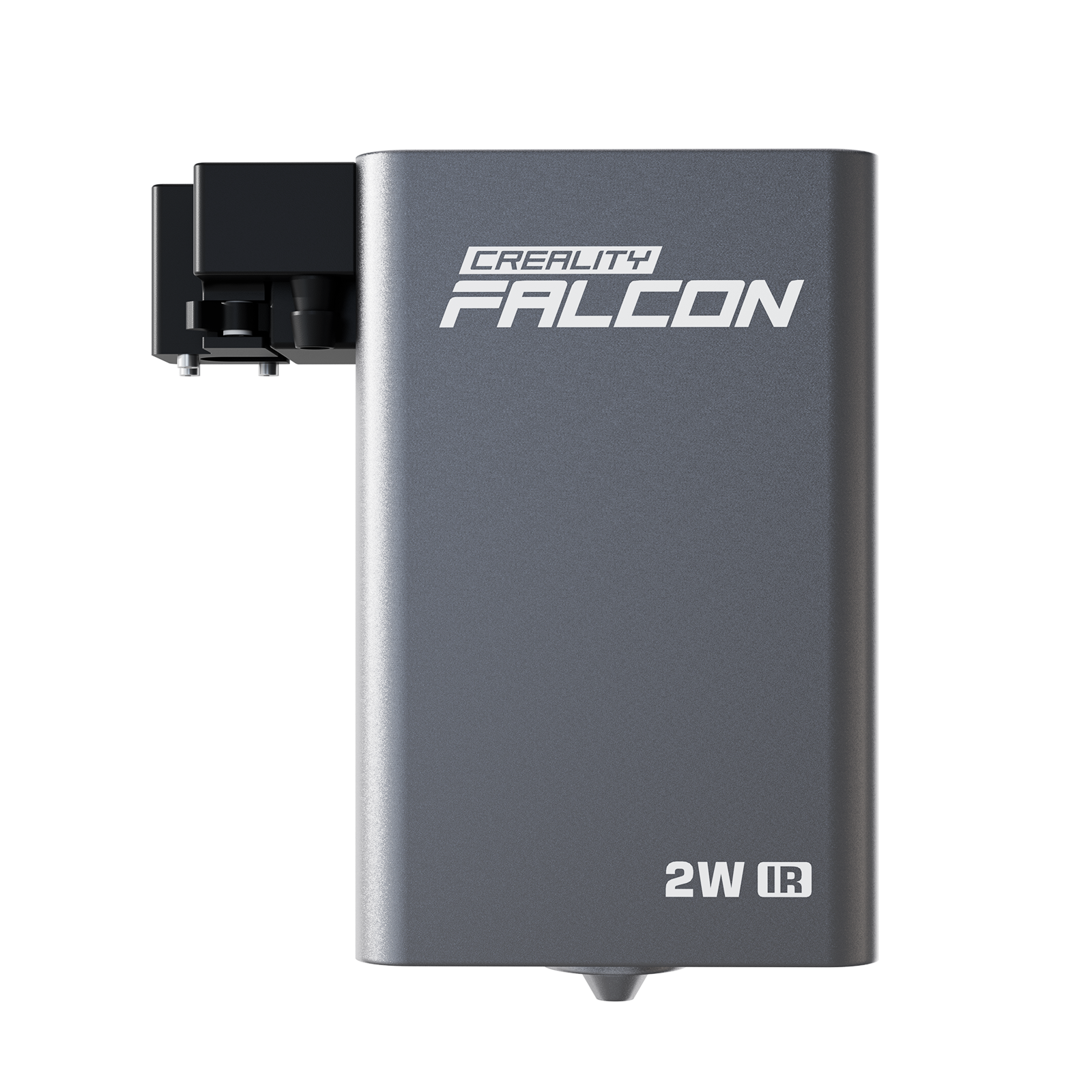
The optional 2W IR module, depending on bundle or configuration, can expand marking possibilities on certain metals and plastics. For normal laser cutter test files, however, most beginners will focus first on wood, paper, cardboard, leather, dark acrylic, and coated blanks.
- SPECS: 20W diode laser; optional 2W IR module depending on bundle or configuration; enclosed desktop design; AI visual autofocus; touchscreen and app control; supports Falcon Design Space, LightBurn, and LaserGRBL workflows.
- PROS: Enclosed design is easier for home and beginner use.
- PROS: 20W diode power gives more room for cutting and material testing than low-wattage machines.
- PROS: Autofocus and software support make repeated tests easier to manage.
- CONS: Clear acrylic cutting is still better handled by CO2 laser technology.
Prices may vary due to promotions. Please check the official website for the latest pricing.
Common Mistakes When Using Test Files
- Testing on the wrong material: Settings from basswood may not work on plywood, leather, acrylic, or coated metal.
- Skipping focus: A poorly focused laser can ruin the test result.
- Using too narrow a range: If every square looks the same, widen the speed or power range.
- Ignoring air assist: Record whether air assist was used because it changes cutting and charring results.
- Forgetting to label results: Save the final settings by material and thickness.
FAQ
1. Where Can I Get Laser Cutter Files?
You can get laser cutter files from platforms such as Thingiverse, LaserGRBL, Falcon Design Space, LightBurn, maker communities, and laser software libraries. Always check file format and safety before running a downloaded file.
2. What File Type Do I Need for a Laser Cutter?
Most laser cutters use vector files such as SVG, DXF, AI, and PDF for cutting paths.
Raster formats such as PNG, JPG, and BMP are commonly used for photo engraving or shaded artwork.
3. Where Can I Get Laser Cut Files for Free?
Free laser cut files are available from Thingiverse, LaserGRBL sample pages, Falcon Design Space resources, community forums, and some maker websites.
Check licensing if you plan to sell products made from downloaded files.
4. Should I Use a Downloaded Test File or LightBurn Material Test?
Use a downloaded test file if you want something quick and simple.
Use LightBurn Material Test if you want more control over speed, power, fill mode, line mode, and test range.
5. Do I Need to Run a Test File for Every Material?
Yes, you should run a test file for each new material type, thickness, color, coating, or supplier batch. Even similar-looking materials can require different settings.
6. Can a Test File Help with Cutting and Engraving?
Yes. Some test files are designed for engraving darkness and detail, while others test cutting power, kerf, focus, and pass count. Choose the test file based on the result you need.
Conclusion
A laser cutter test file is one of the easiest ways to improve results as a beginner. It helps you find the right speed, power, passes, and focus before committing to the final material.
Start with free sources such as Thingiverse, LaserGRBL, and Falcon Design Space, then move to LightBurn’s Material Test tool when you want more control. The habit is simple but powerful: test first, record settings, and use those results to cut and engrave with more confidence.

Recent News

What Materials Does a Laser Cutter Cut Safely
Find out what materials does a laser cutter cut, which plastics to avoid, and how CO2, diode, and...

7 Best Laser Engravers Under $1000
Quick Answer:The best laser engraver under $1000 should be chosen by total setup cost, not machine price alone.For most...

CNC Vs Laser Cutter Which Tool Is Right For You
Compare CNC vs laser cutter tools for wood, acrylic, metal, 3D carving, precision, safety, and beginner projects to...